Home Assistant setup
Guide to blink the LEDs via Home Assistant#
Please don’t forget to remove the device after you finish the setup and playing with the LED! Pretty please :)
Step-by-step guide#
-
In case you are not yet connected, connect to my Wi-Fi network - scan the Wi-Fi QR code, or use SSID: Matter_Raspi_LED, password: CUJO.AI!
-
Download and install the Home Assistant mobile app. Available for Android and iOS. The following guide uses Home Assistant on iOS, but Android setup is almost the same. Mobile app locations . Start the app.
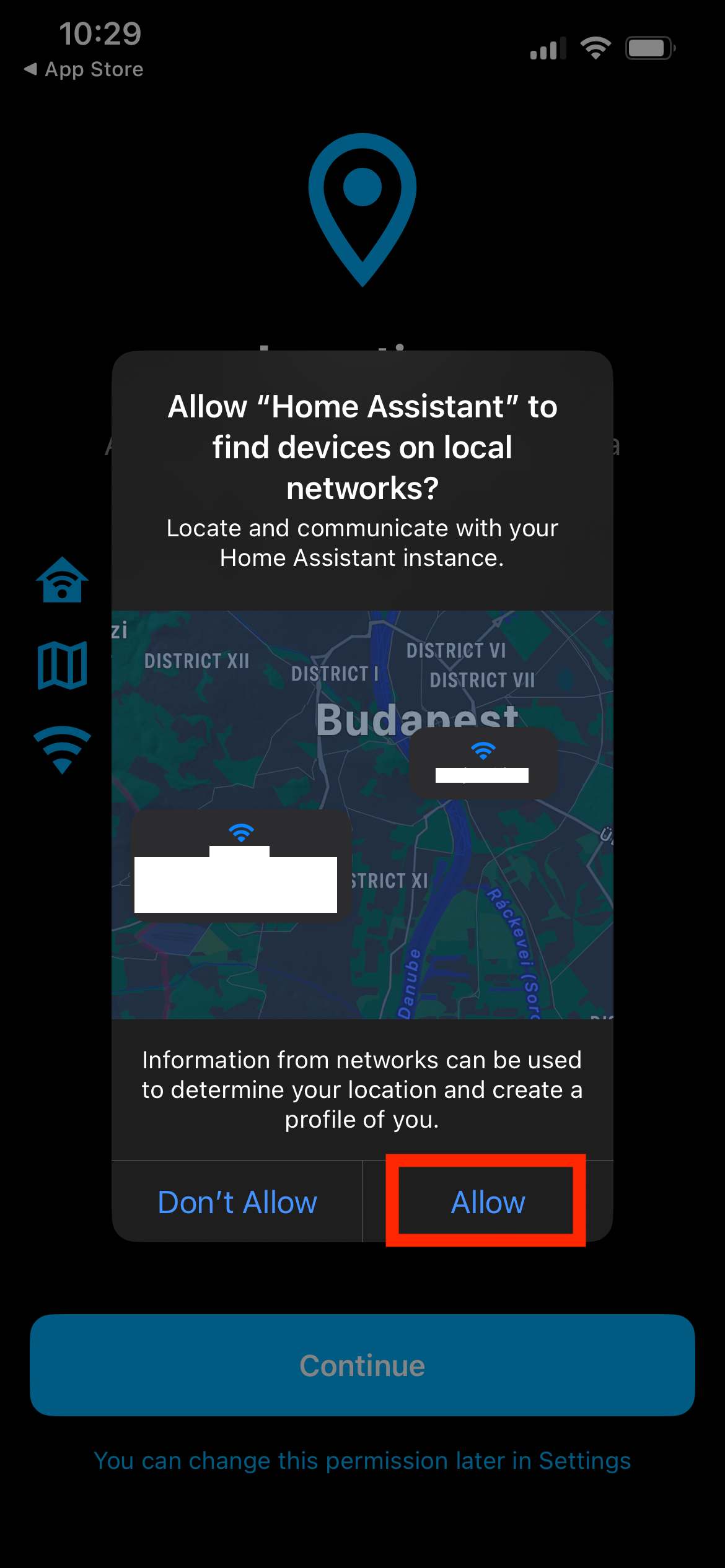
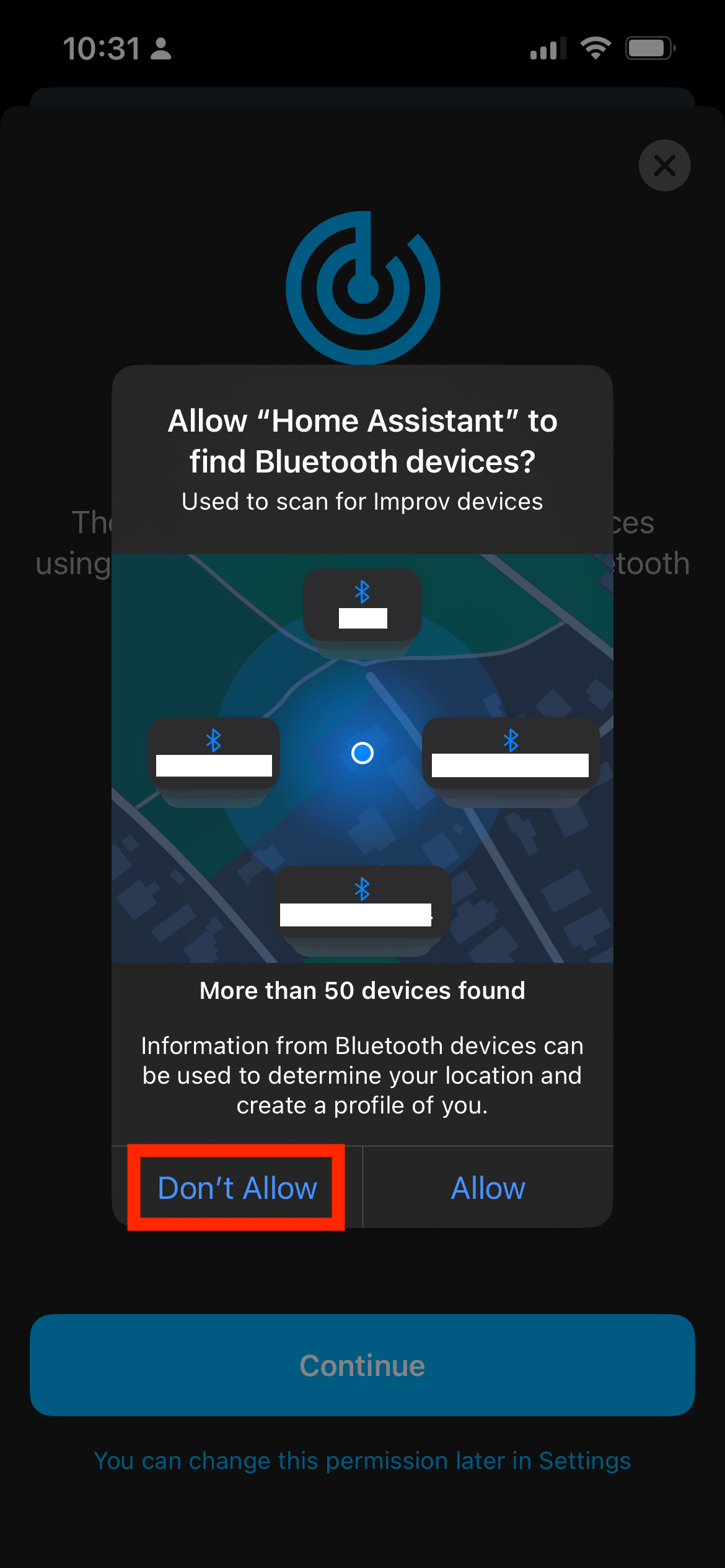
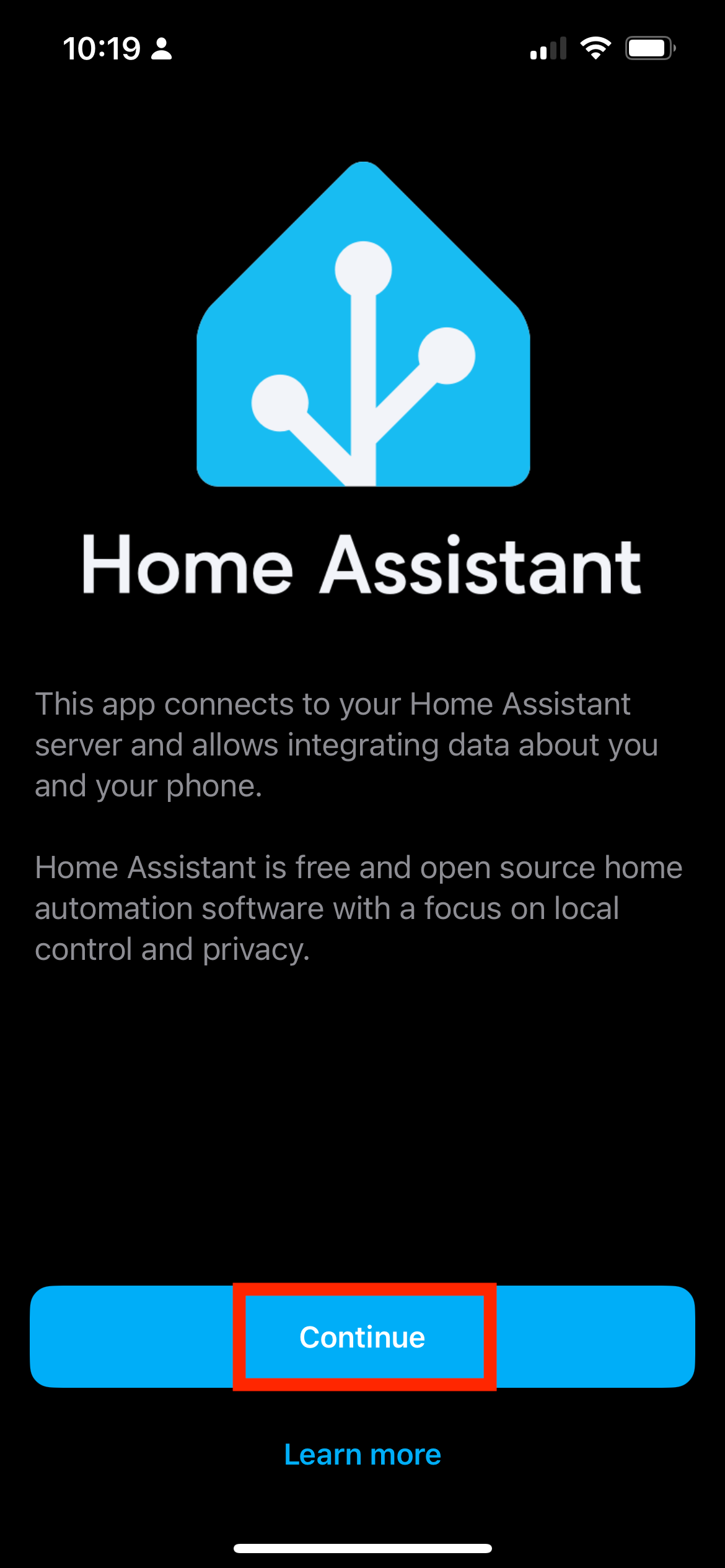 Please enable to find local devices
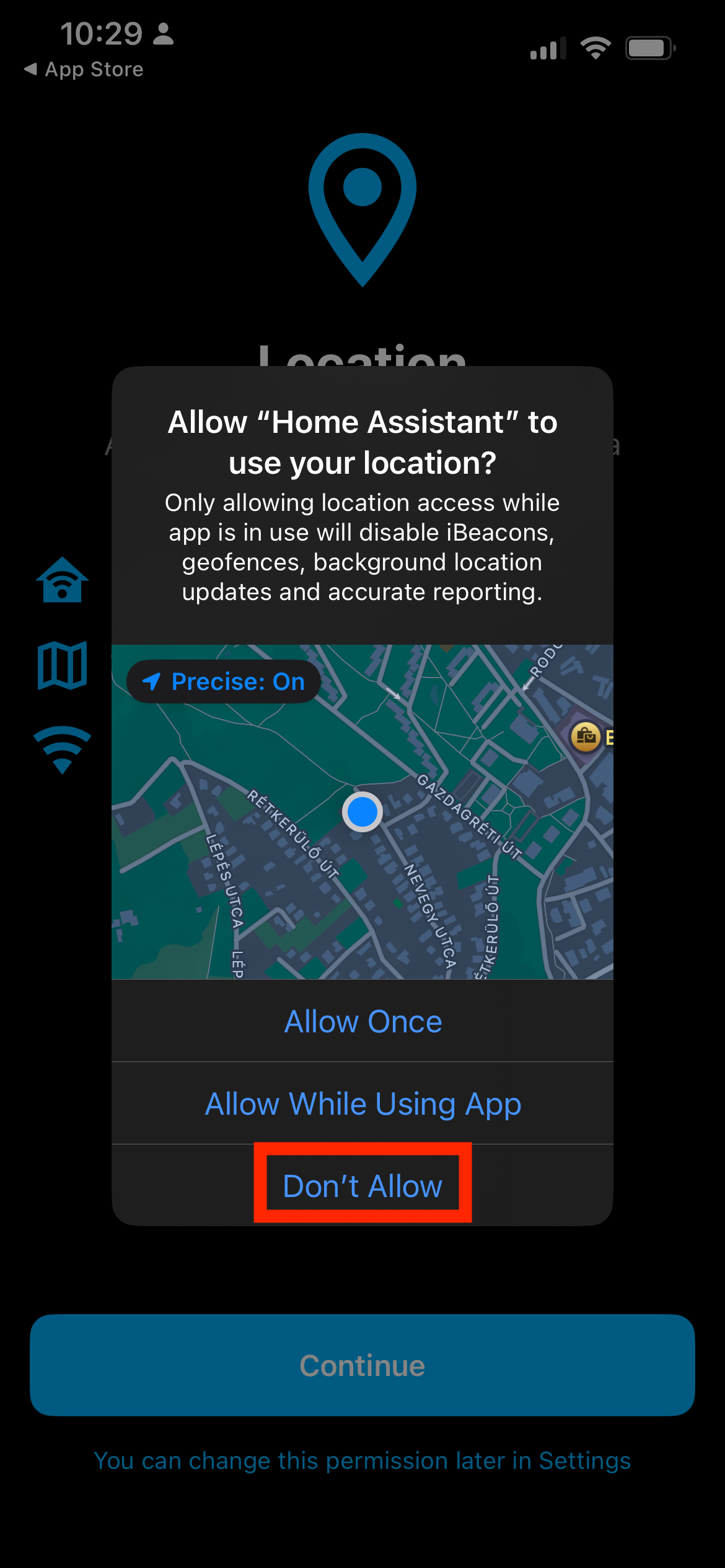
 We are not using location services now; feel free to deny this permission.
It should be able to find the Home Assistant server automatically. If not:
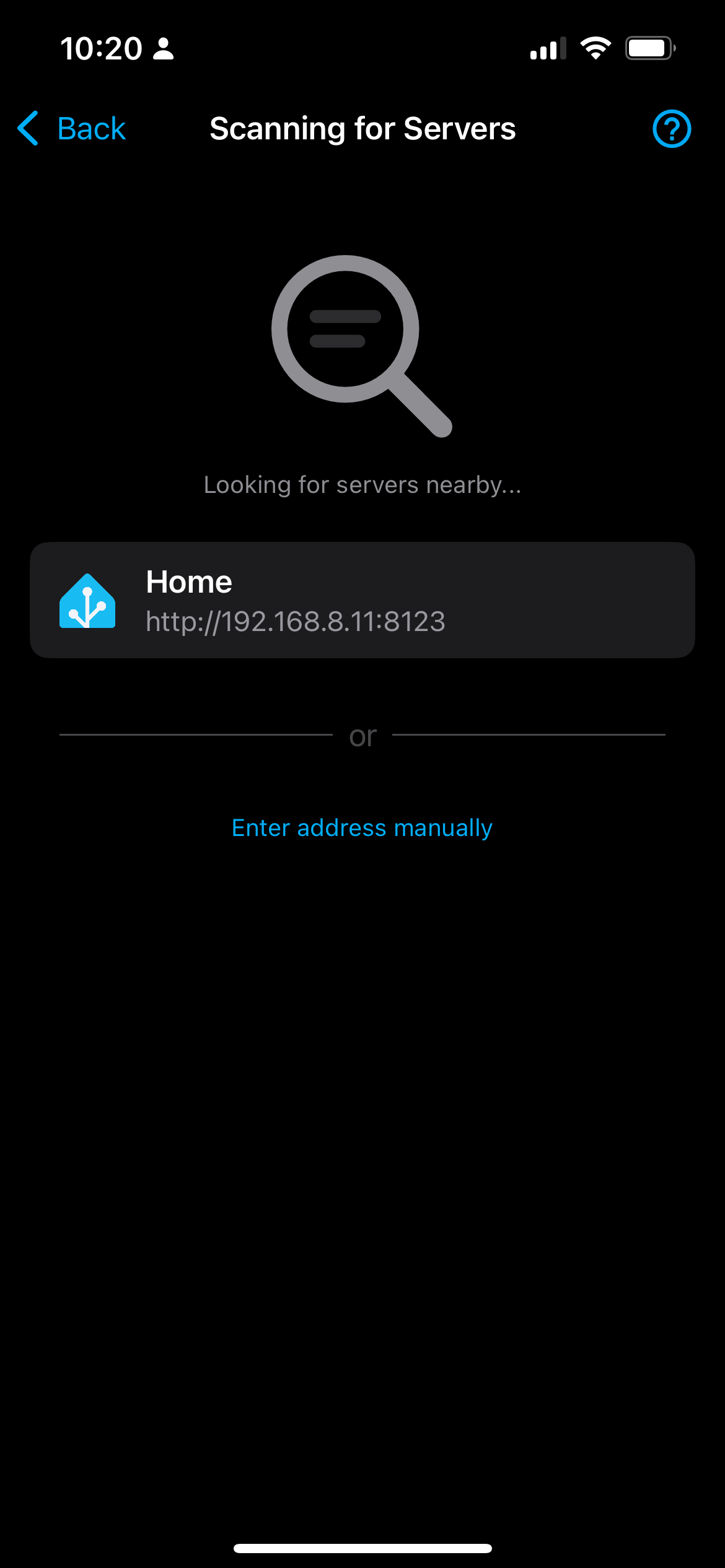 Server URL: http://192.168.8.15:8123
-
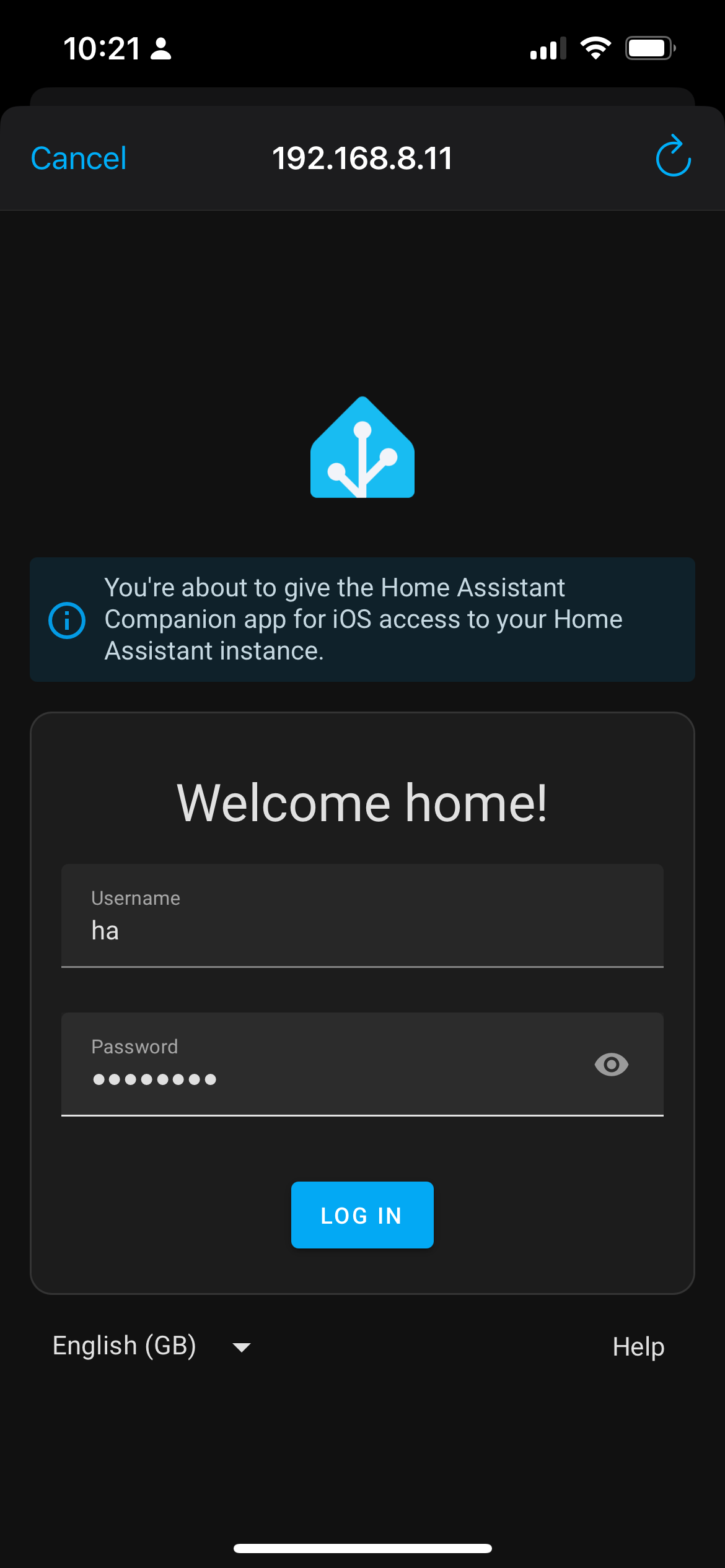
Login with username: ha password: CUJO.AI!
-
Pick a station number currently not used by anyone else. Touch the chosen station number on the touchscreen.
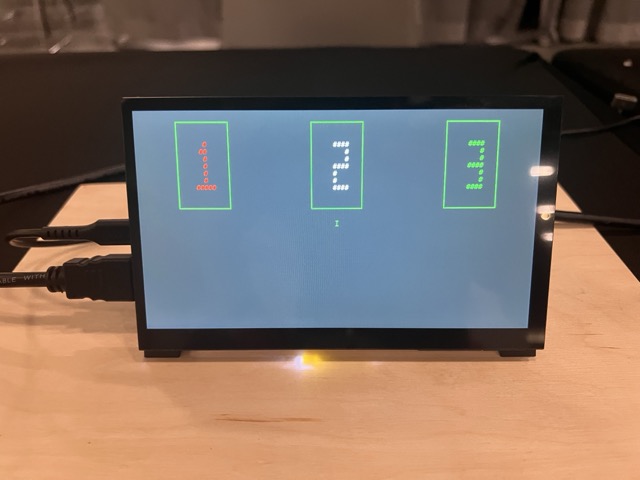
This will put the Matter device into factory reset/commissioning mode.
-
Scan the Matter QR code with the matching station number from your device using the Home Assistant app.
-
Use your Home Assistant app to start the device pairing process, following the screenshots. Defaults are fine, but you can be creative if you want.
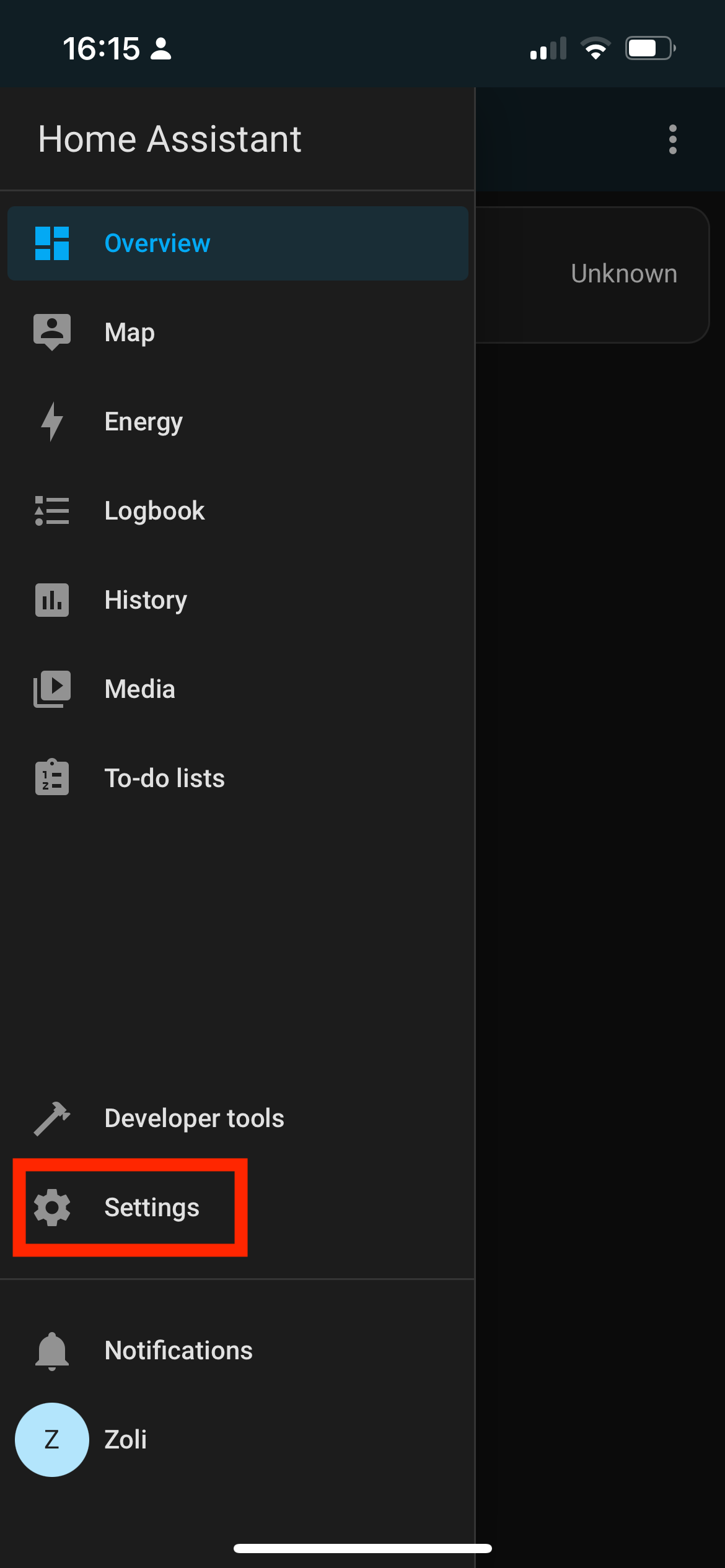
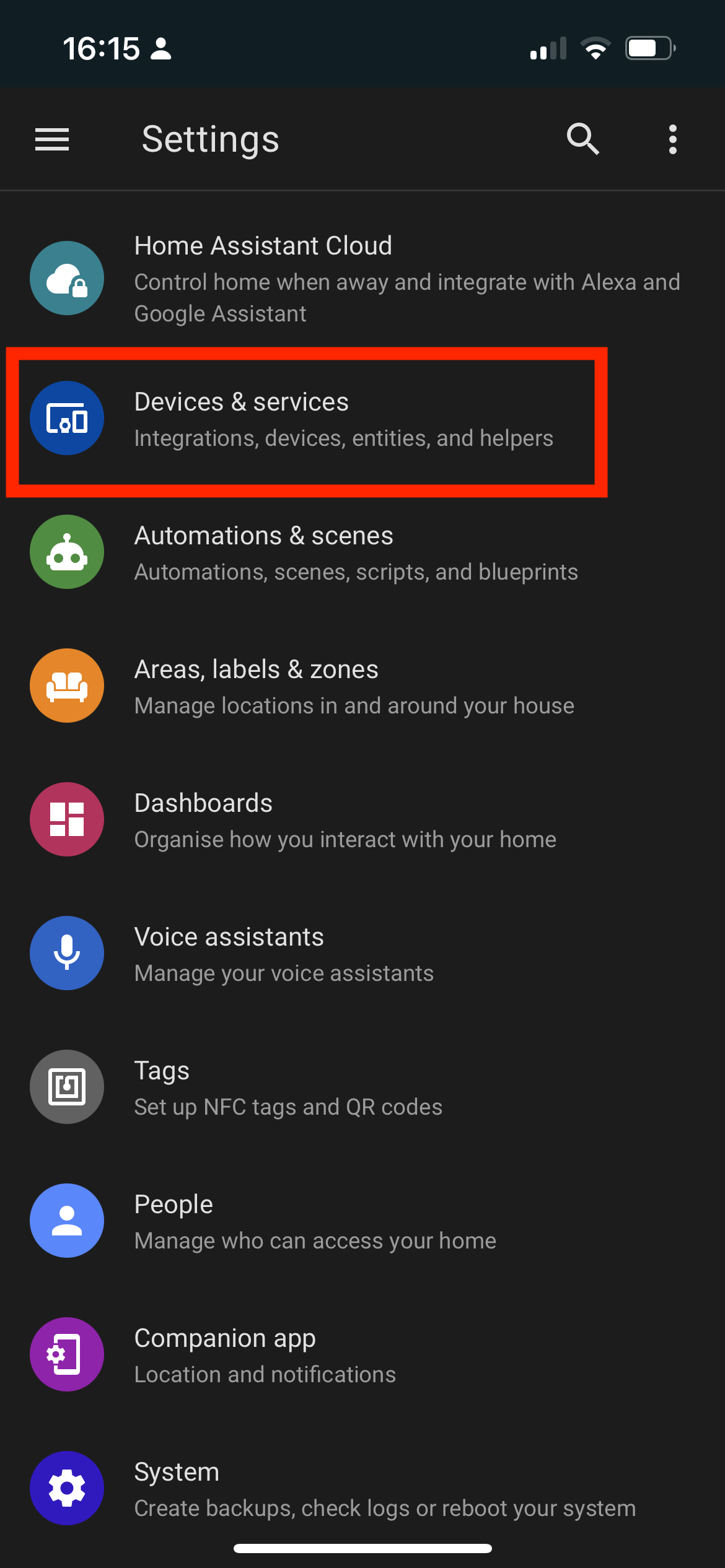 If the App is asking for Bluetooth permissions, feel free to deny access. As the LEDs are connected via Ethernet already, we don’t need Bluetooth. Otherwise, for Wi-Fi or Thread devices, you might need Bluetooth.
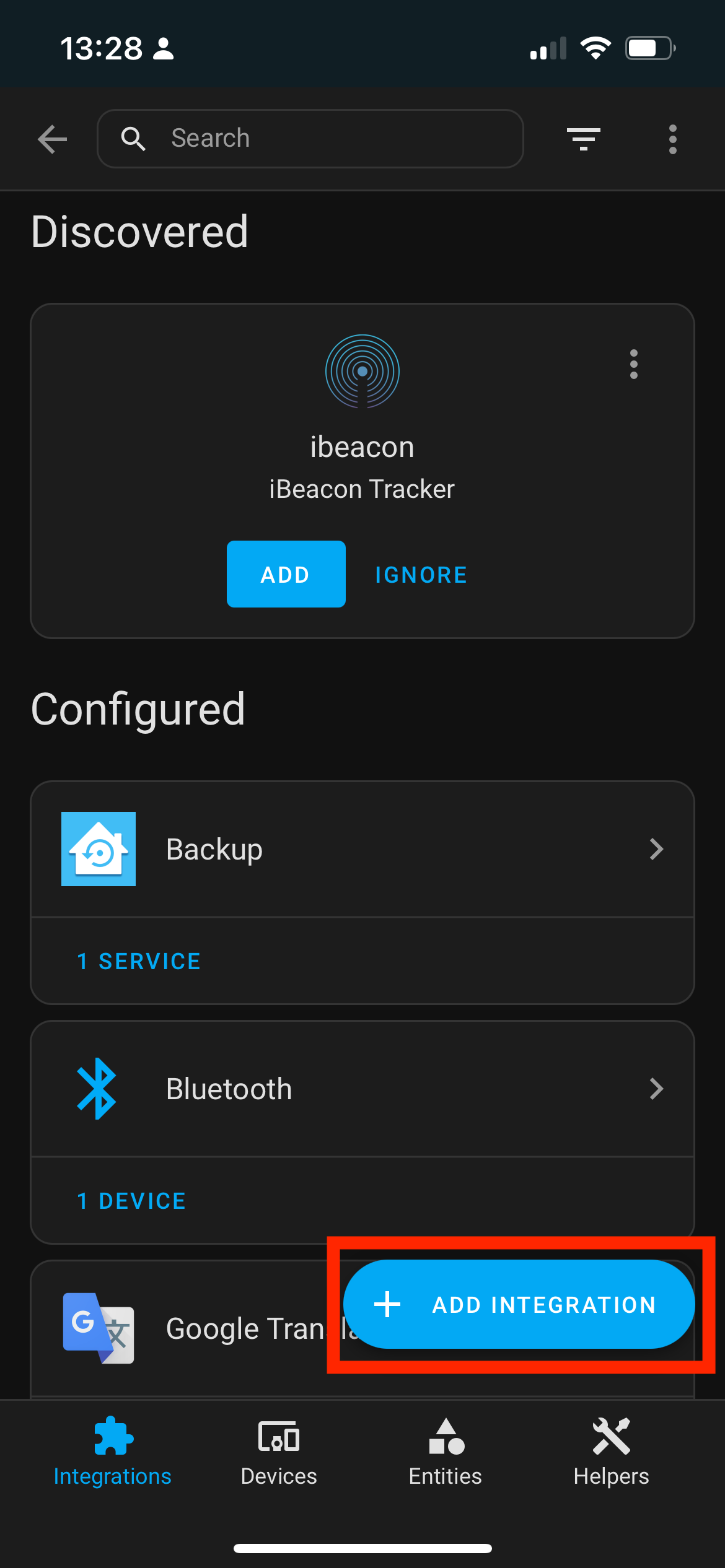
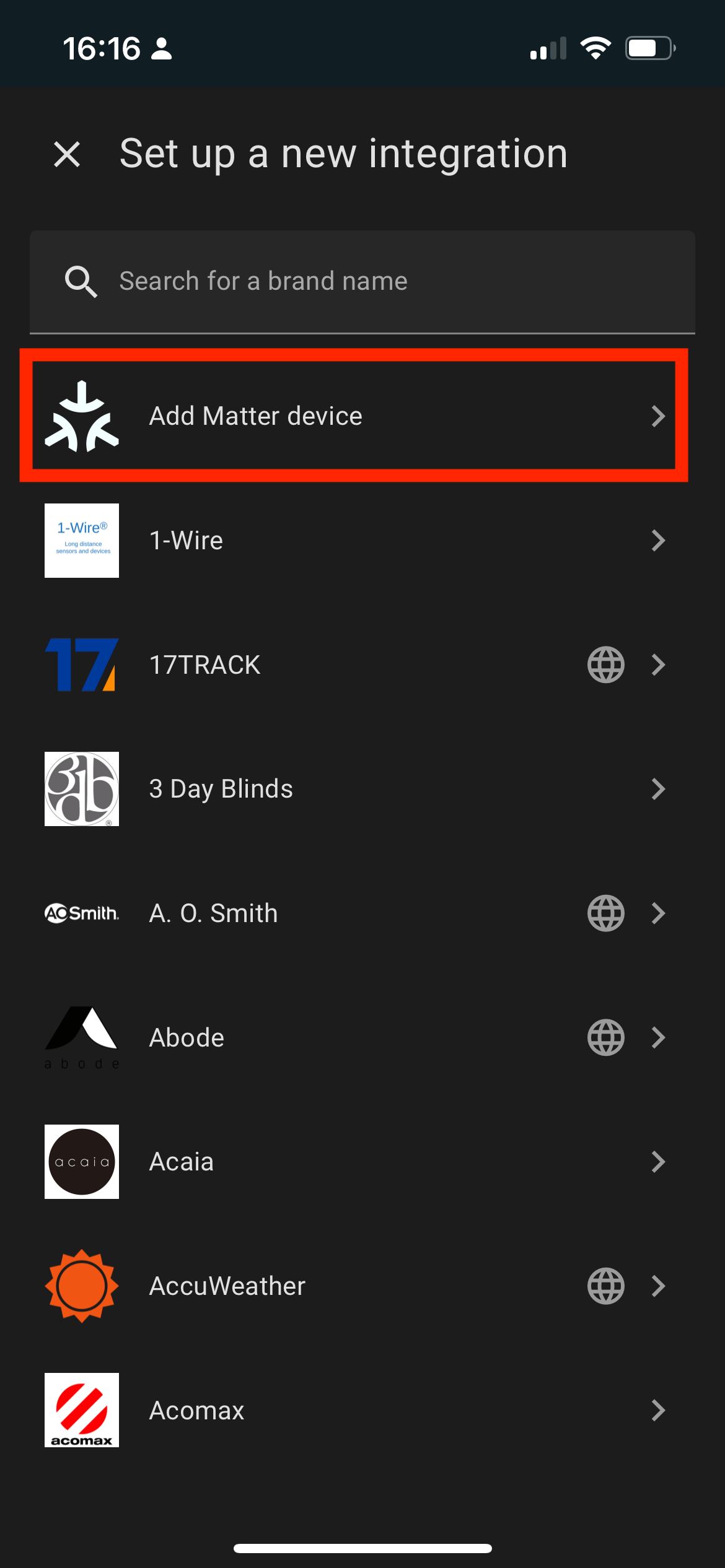
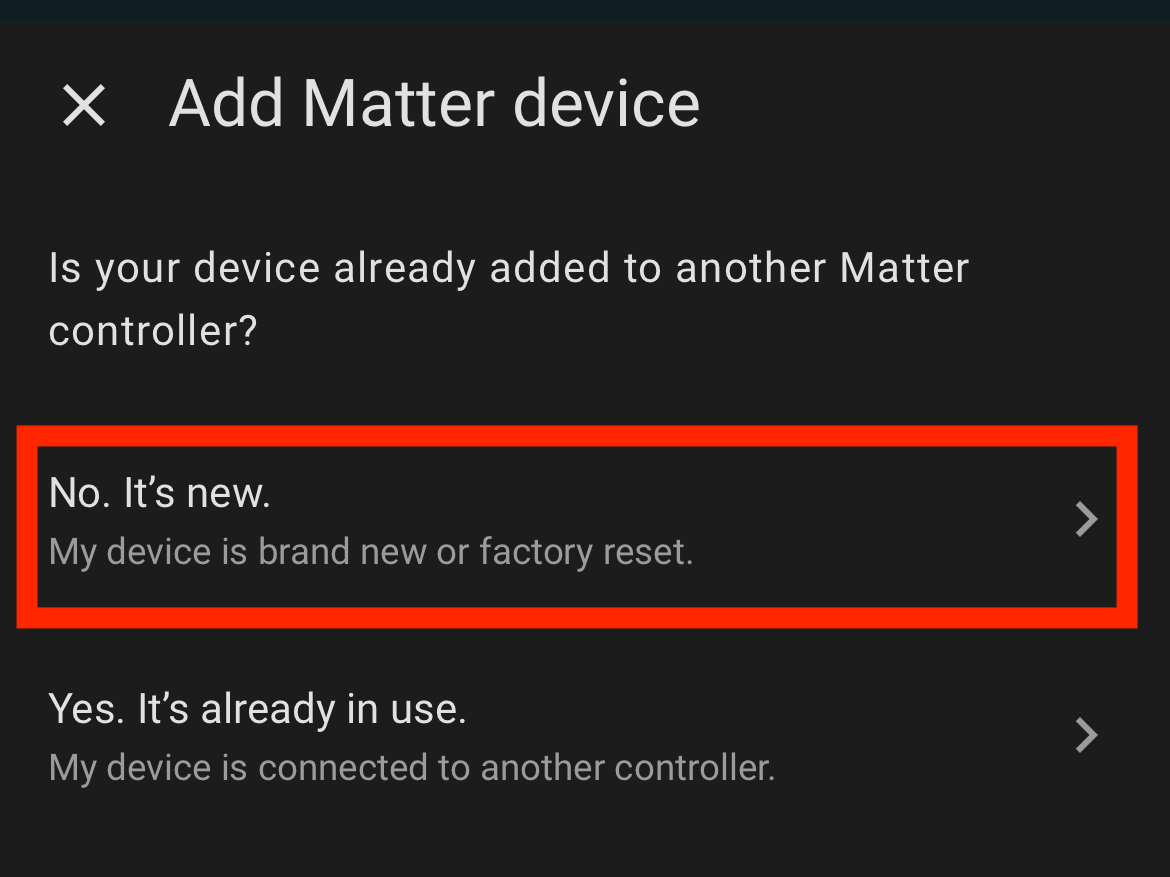
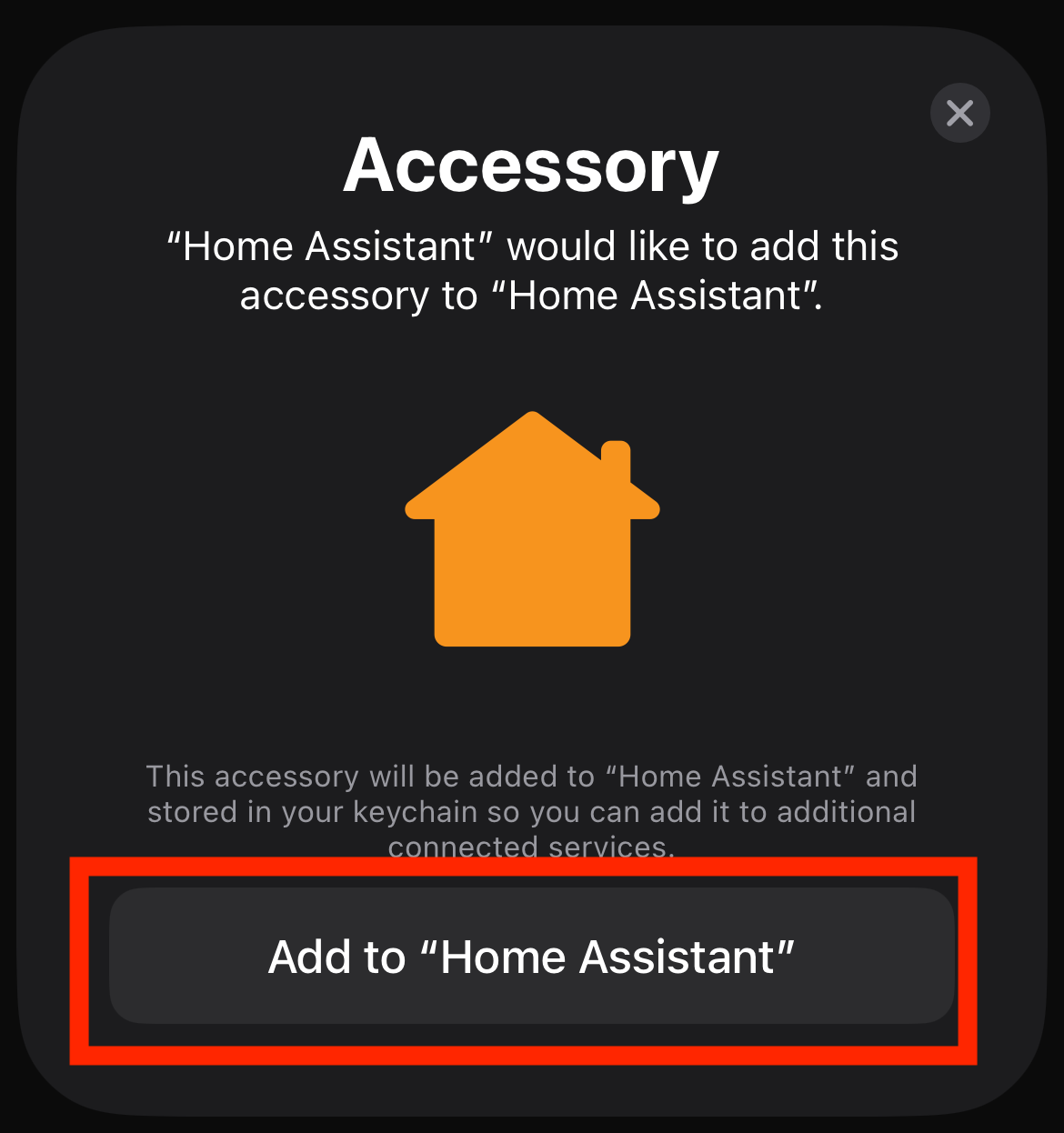
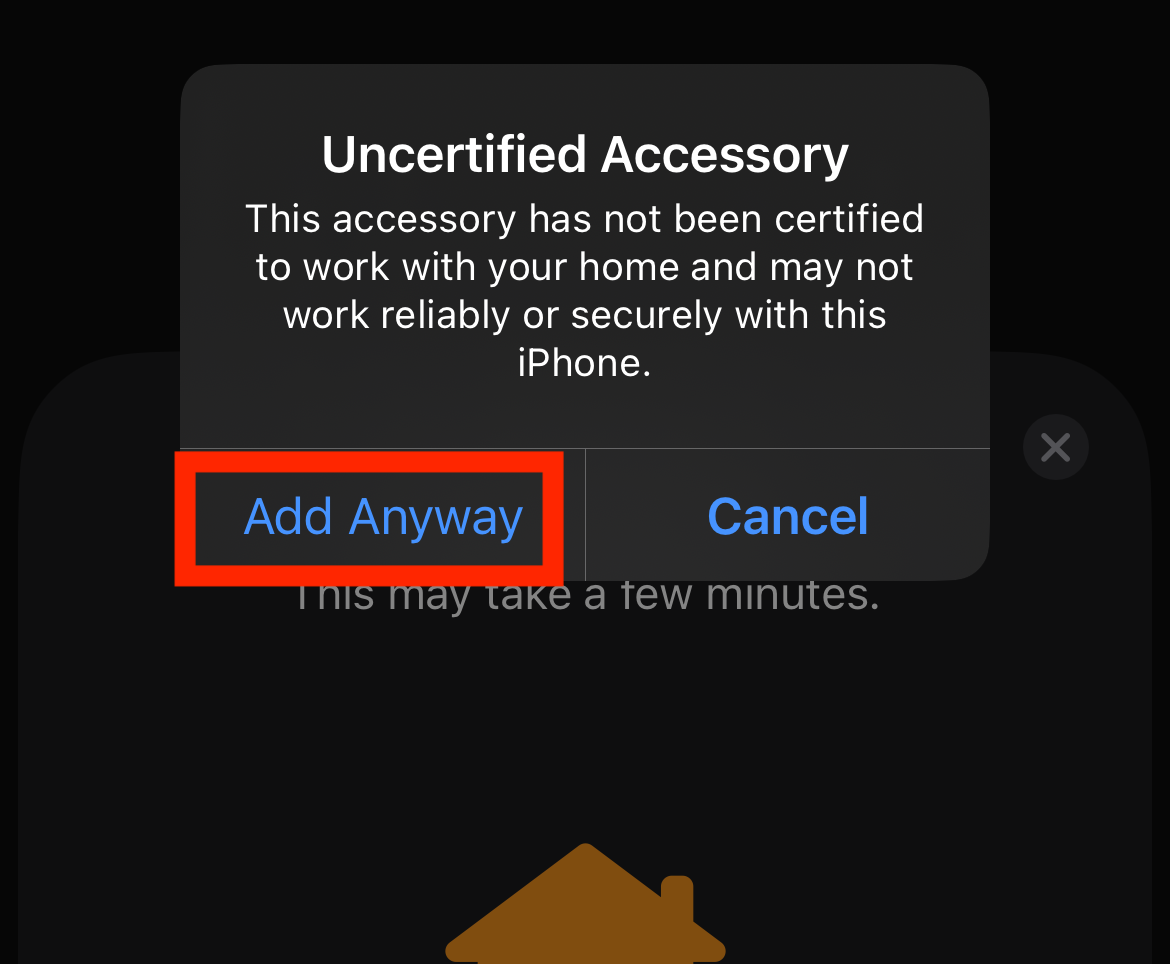 The LEDs are “uncertified” because this is a test/development device, not a commercially available one. Using this test/development environment does not pose security risks to your mobile device.
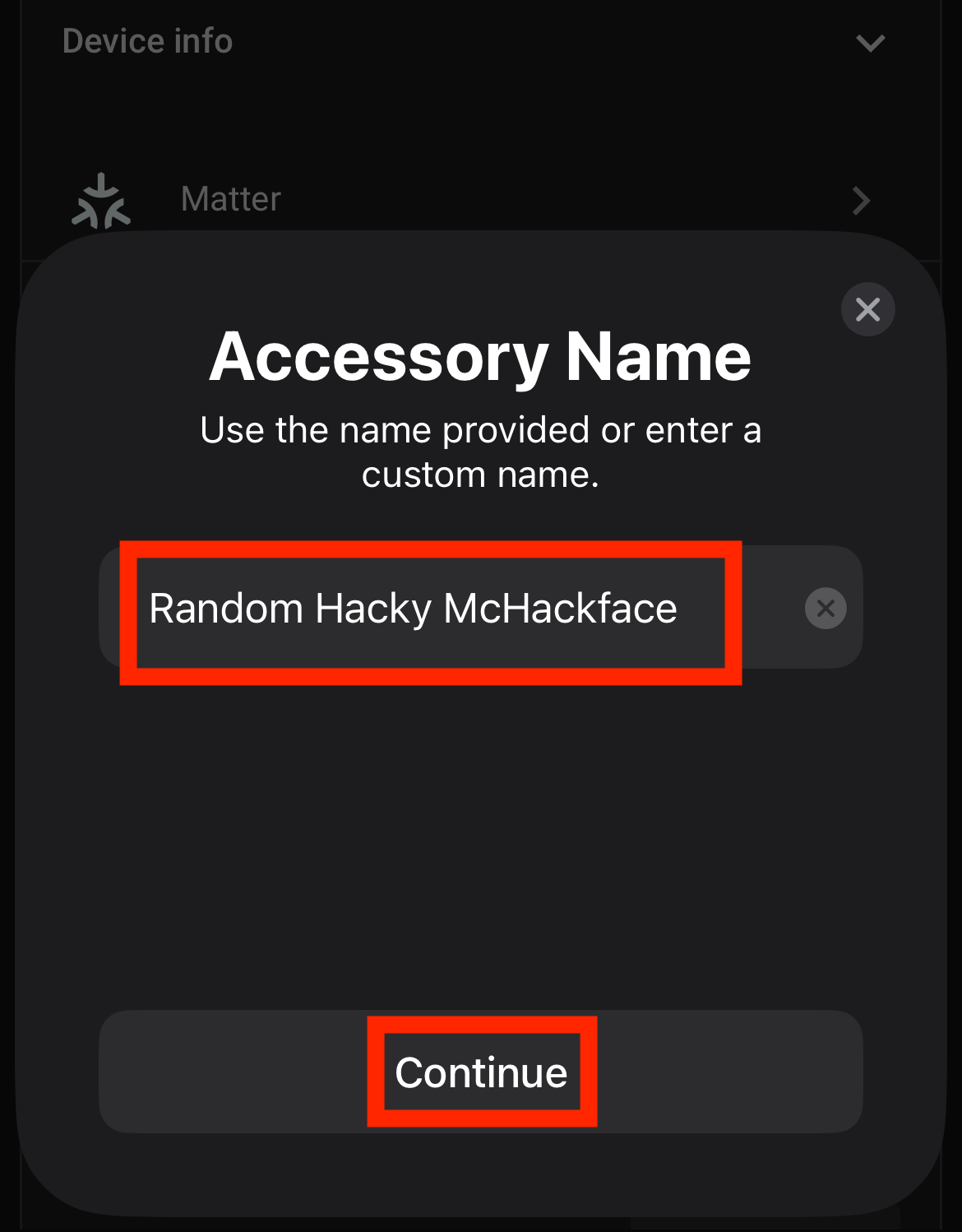 You can name the device anything you want, just please, be mindful and stay compliant with the DEF CON code of conduct.
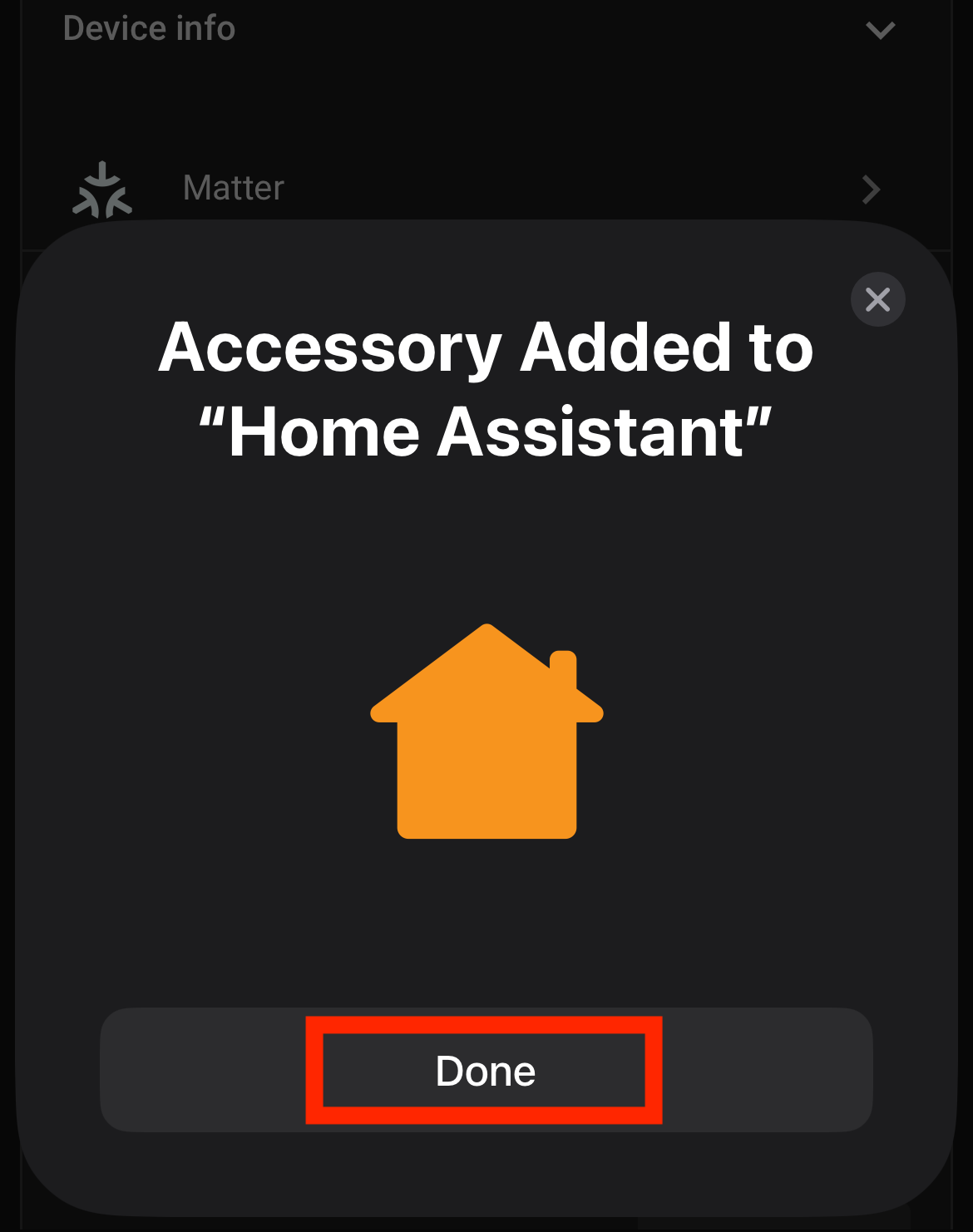
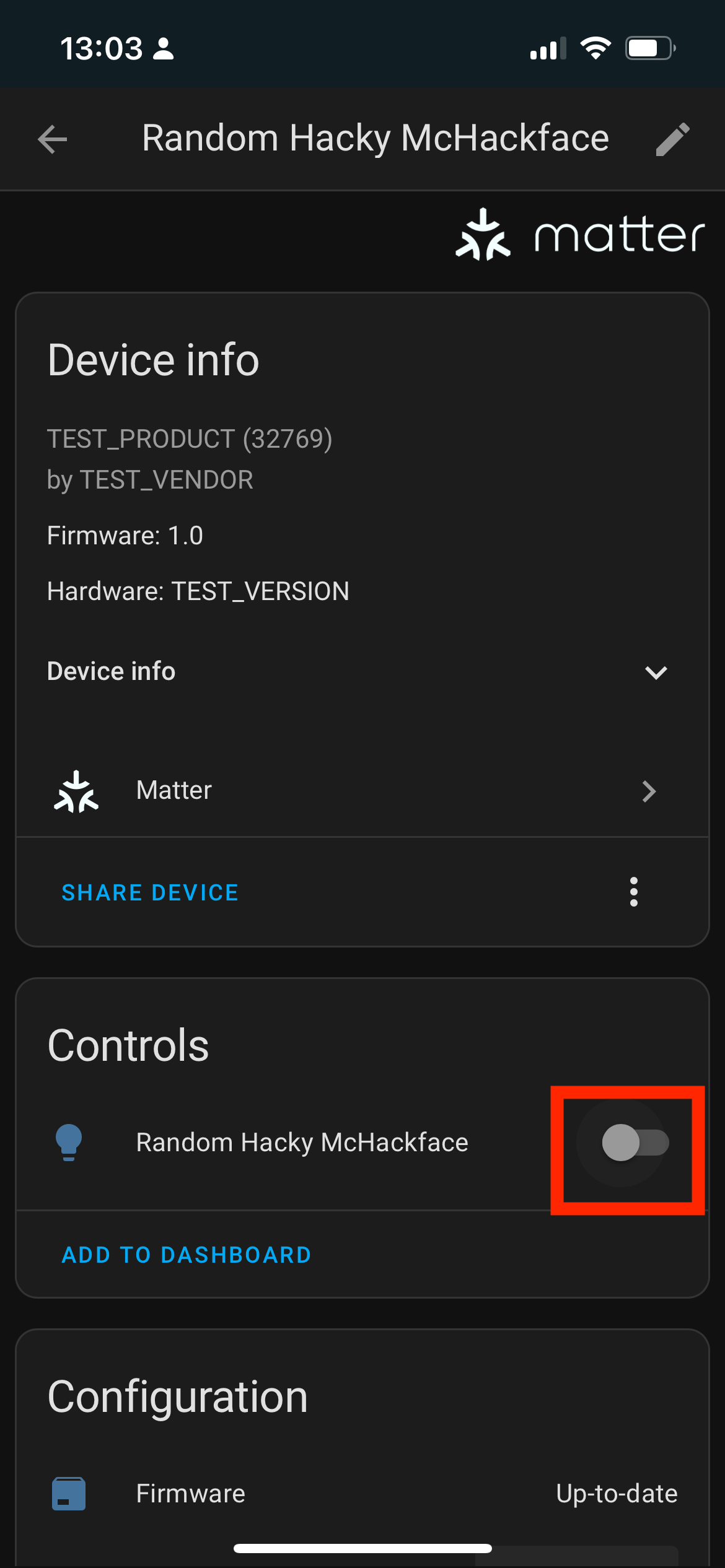
- Now you can control the Raspi LED from your device! How cool is that? And what is even cooler? You can control the same device from another ecosystem as well - in this case, Google or Apple!
Before you leave …#
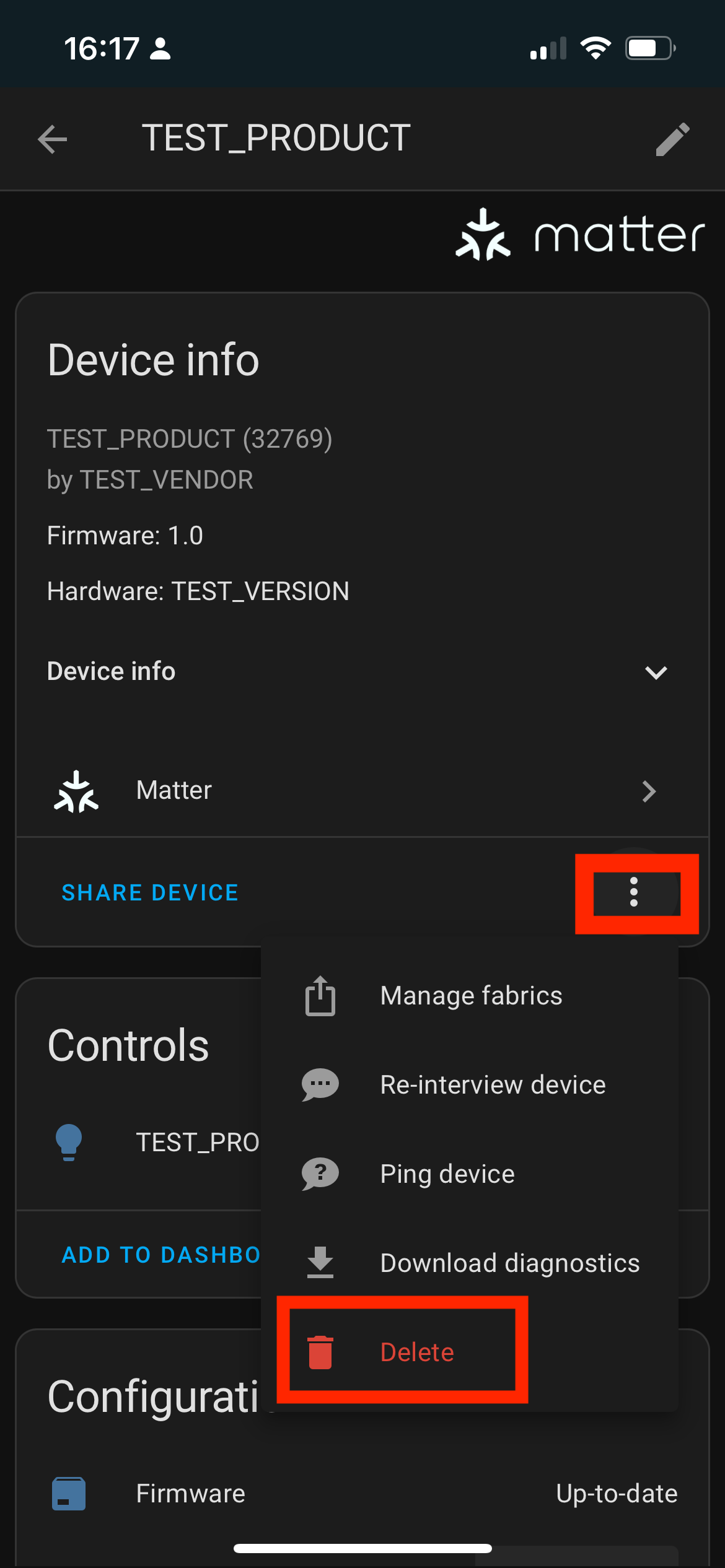
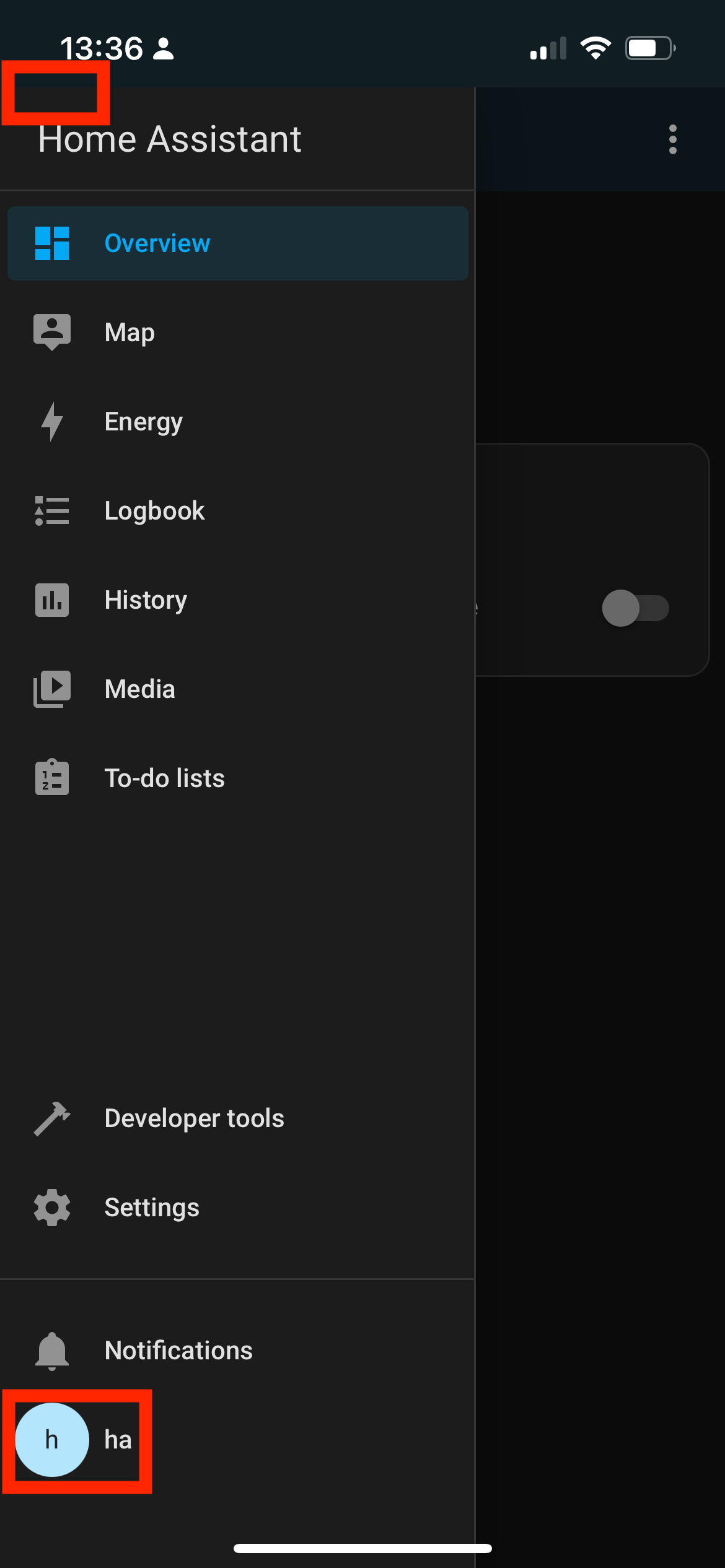
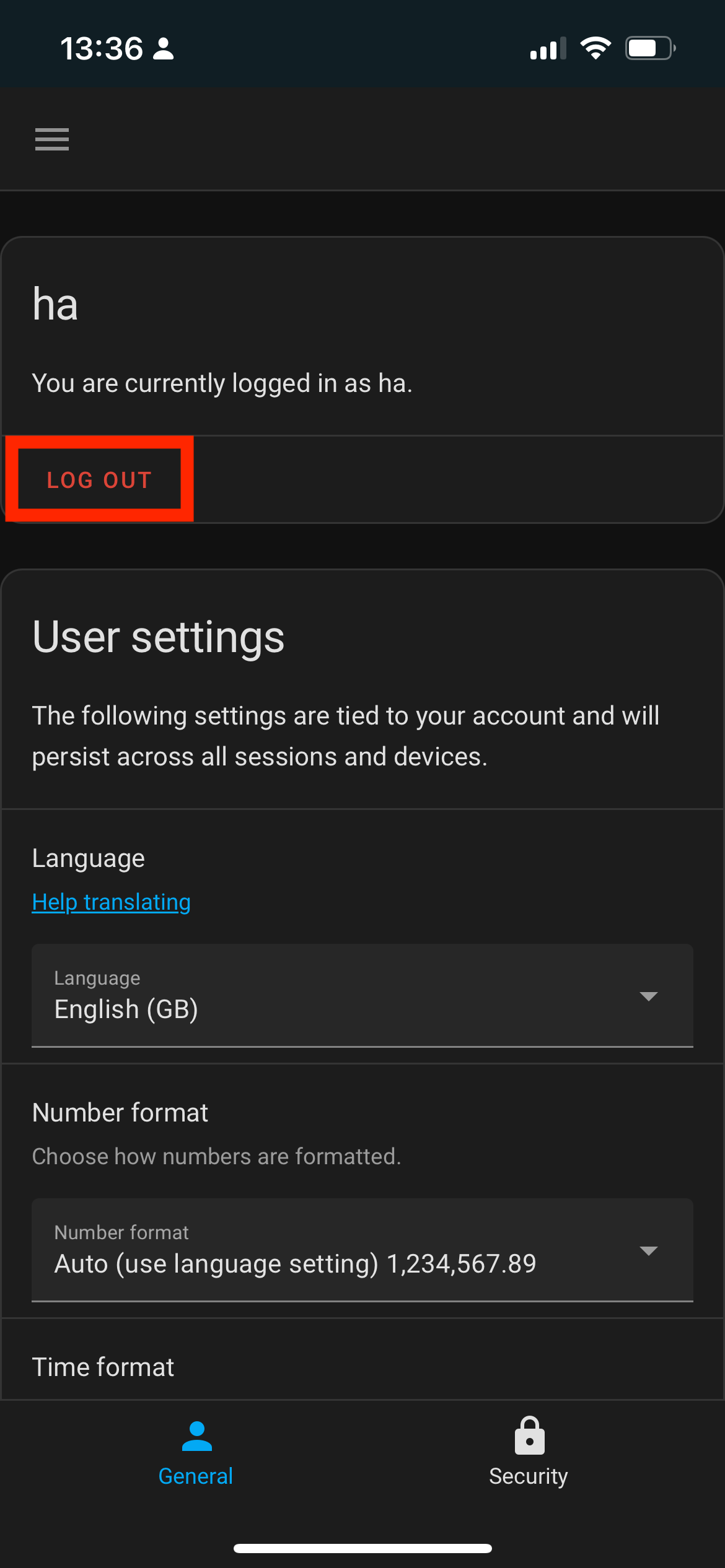
- Once you have finished playing with the device, please remember to clean up. Remove the accessory from the Home Assistant and log out of Home Assistant.
Privacy notice#
One of the reasons I love Home Assistant is its privacy settings.
Other ecosystems might collect a bit more data than this.

Side note: If you think, “Hey, I can control your Home Assistant server as well!” The answer is yes, you can. Pretty please, don’t. Thank you.
Don’t forget to fill out our feedback form