macOS setup
Guide to blink the LEDs via macOS#
Please don’t forget to remove the device after you finish the setup and playing with the LED! Pretty please :)
Step-by-step guide#
-
In case you are not yet connected, connect to my Wi-Fi network - scan the Wi-Fi QR code, or use SSID: Matter_Raspi_LED password: CUJO.AI!
-
Use brew to install chip-tool - compatible with M / Silicon and Intel.
brew install Z6543/chip-tool/chip-tool
- Pick a station number currently not used by anyone else. Touch the chosen station number on the touchscreen.
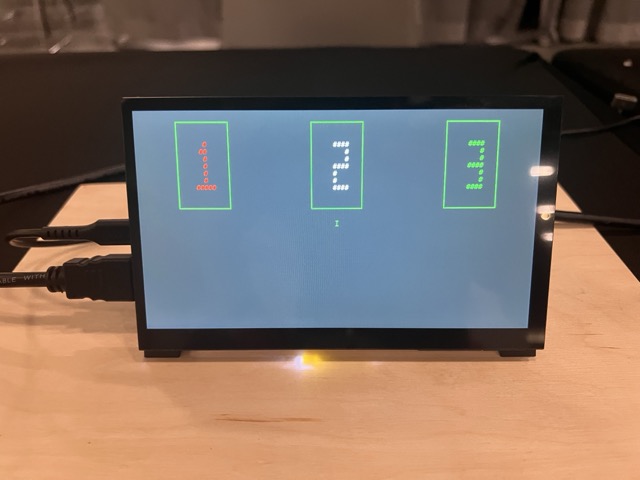
This will put the Matter device into factory reset/commissioning mode.
Optionally you can scan for commissionable devices which already have network access:
chip-tool discover commissionables
To commission the device:
chip-tool pairing code 110 Manual pairing code
example: chip-tool pairing code 110 0……336
In case you wonder what 110 in the command is, 110 is the node-id, an identifier a client chooses for identifying the device. You can change this value as you want, but all the example documentations use this one. Just remember to use the same value in pairing and toggle commands.
You can get information about the device like:
chip-tool basicinformation read vendor-name 110 0
chip-tool basicinformation read product-name 110 0
To get a list of available attributes, run:
chip-tool basicinformation read
- Toggle the LED on/off with: Turn on:
chip-tool onoff toggle 110 1
Turn off:
chip-tool onoff toggle 110 1
Explanation: “onoff toggle … 1” means “toggle”.
Before you leave …#
- Once you finish playing with the device, you can unpair the device (optional). Remove the accessory from the chip-tool.
chip-tool pairing unpair 110
Don’t forget to fill out our feedback form